Introducing the new Credivera wallet
The new design makes it simpler and easier to use. Your credentials stay where they are; only how you view and manage them has changed.
Why we made this change
Your wallet is where you spend most of your time in Credivera. We listened to your feedback and focused on making the things you do every day quicker and clearer.
Here's what the new wallet gives you:
- See your status at a glance. Summary counts at the top of the page show how many credentials are verified, expiring soon or need attention.
- Find credentials faster. Search, filter and sort your credentials instead of scrolling through them.
- Everything about a credential in one place. Details, tasks, sharing, activity, access and proof open together in a single panel.
- A better experience on your phone. The wallet adapts to any screen size, so it works just as well on a phone as on a computer.
- Easier to use for everyone. Improved keyboard navigation and screen reader support make the wallet more accessible.
What to expect in the updated wallet
When you sign in after the update, you'll land on Credentials. The main areas are described below.
Credentials
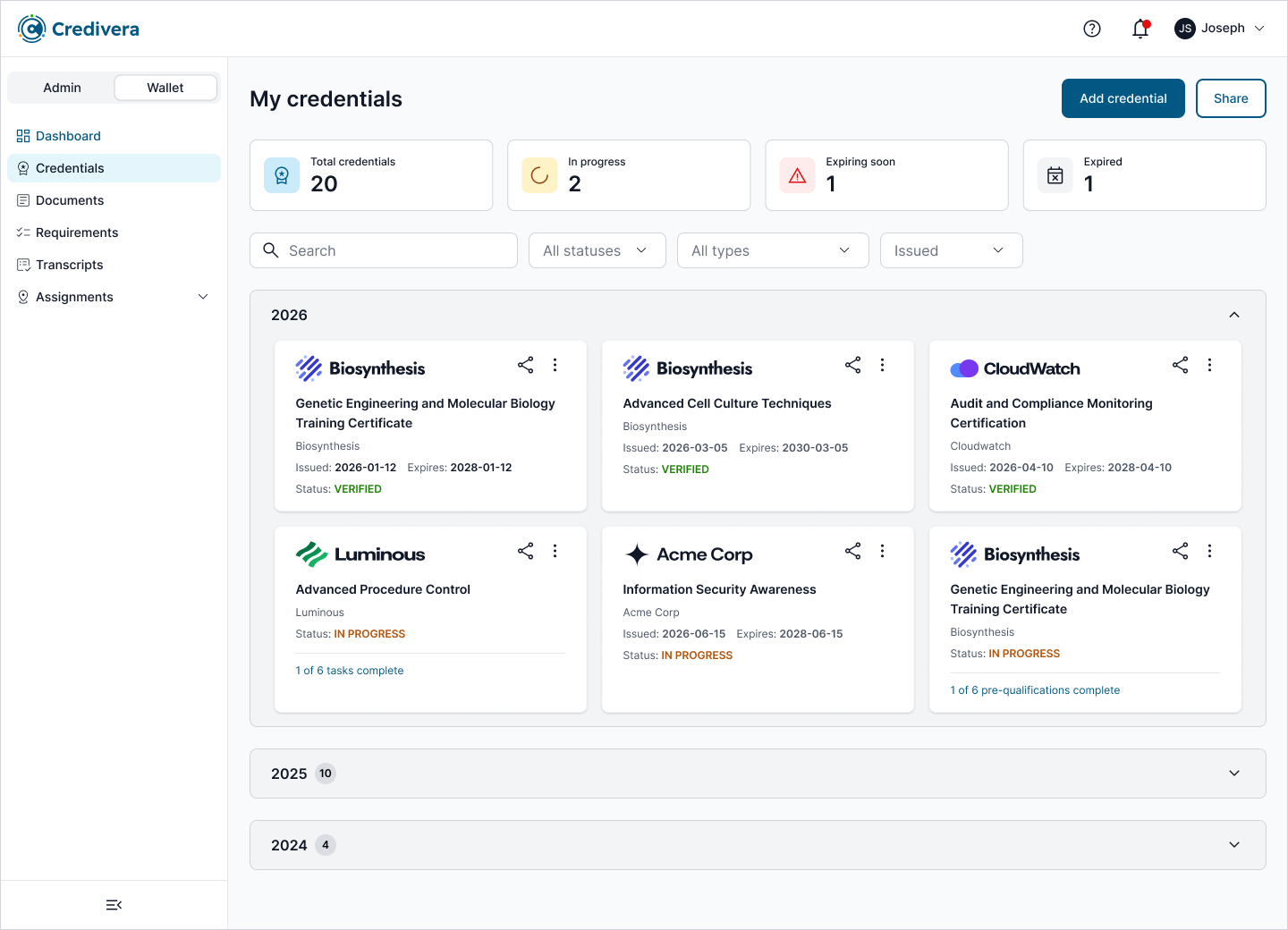
- Summary counts at the top show how many credentials are in each status.
- Search by credential name, or filter by status and type.
- Sort by issued date, expiry date or name. When sorted by date, credentials are grouped by year. Select a year to expand or collapse its group.
- Each credential card shows its issuer, status and dates. If a credential has tasks or credits to complete, the card shows your progress.
View a credential's details
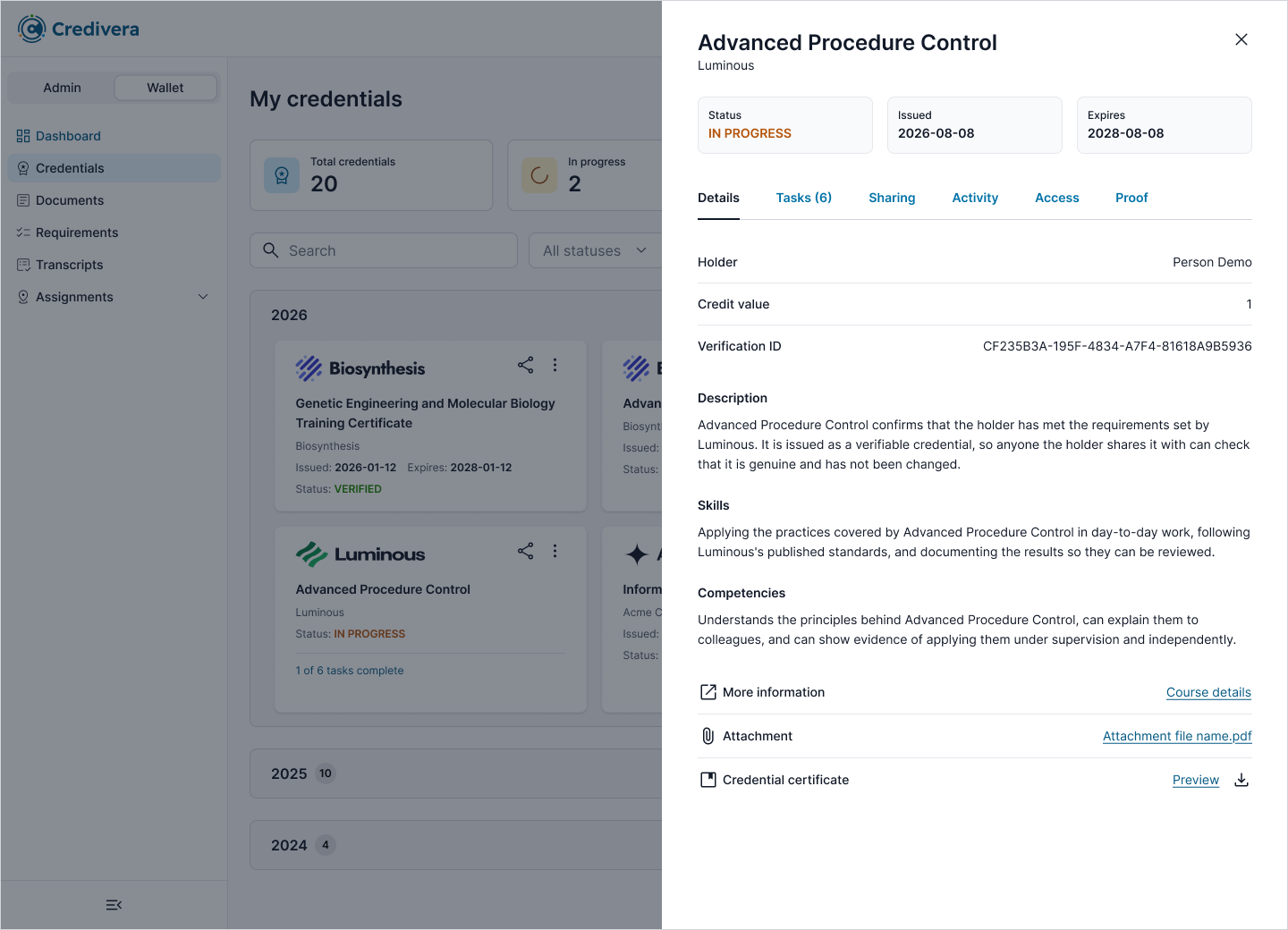
Select any credential card to open its details panel. Depending on the credential, you'll see these tabs:
| Tab | What you can do |
|---|---|
| Details |
See the credential's key information, dates and attachments. |
|
Pre-qualifications or Credits |
Track and complete what's required, such as acknowledgements, document uploads or credit submissions. |
|
Sharing |
Share the credential through a digital wallet app, by email or with a temporary link. |
|
Activity |
See a timeline of everything that's happened to the credential, such as when it was issued, verified, shared or updated. |
|
Access |
Choose which organizations can view, edit or share the credential. The issuer always keeps full access. |
|
Proof |
See the verification data that proves the credential is authentic, and copy it if you need to. |
To close the panel, select the close button or press Esc.
Add a credential
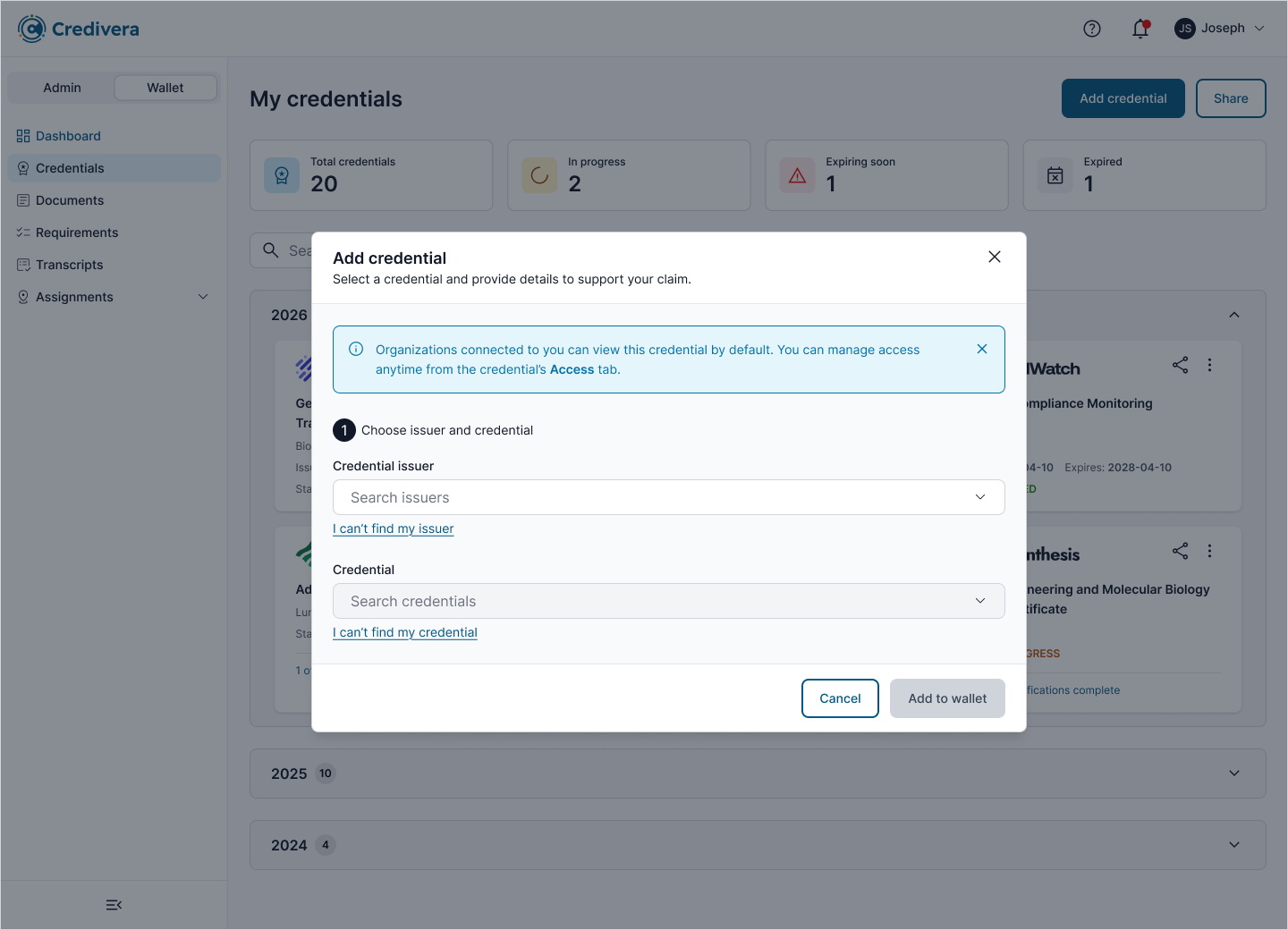
Select Add credential and follow the guided steps:
- Search for the issuer, then choose the credential from their list.
- Enter the details the credential asks for, such as the issued and expiry dates.
- Upload a supporting document if you have one (optional).
- Confirm your consent and select Add to wallet.
Can't find your issuer or credential? Select I can't find my issuer to enter the details yourself.
Update a credential
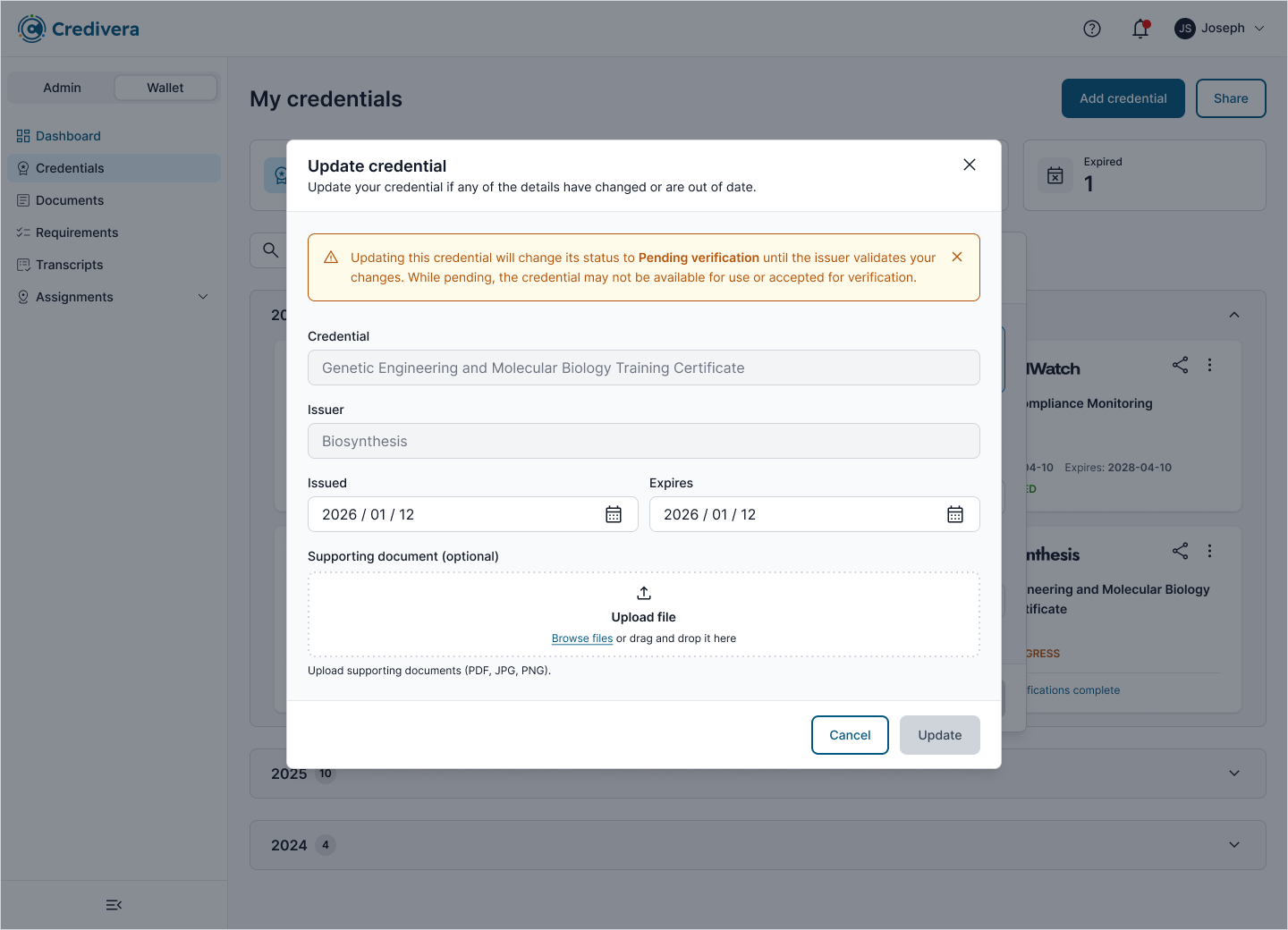
To renew or correct a credential, open the More menu (⋮) on its card and select Update credential. Change the dates or upload a new document, then select Update. The credential's status changes to Pending verification until the issuer confirms the changes.
More improvements are on the way
The wallet is the first step. Over the coming months, we'll bring the same updated design to other areas of Credivera, one section at a time. Until a section is updated, it will keep its current look, so you may see both styles for a while.
We'll let you know before each change arrives and update this article as new areas roll out.
Frequently asked questions
Will I lose any of my credentials or settings?
No. Your credentials, their statuses, and the organizations you share them with all stay the same.- Will the organizations I share with notice a difference? No. How your credentials are verified and shared doesn't change.
- Where can I get help? If you can't find something or have feedback on the new wallet, contact our support team through the Help Center. We'd love to hear what you think.