Navigation changes in Credivera
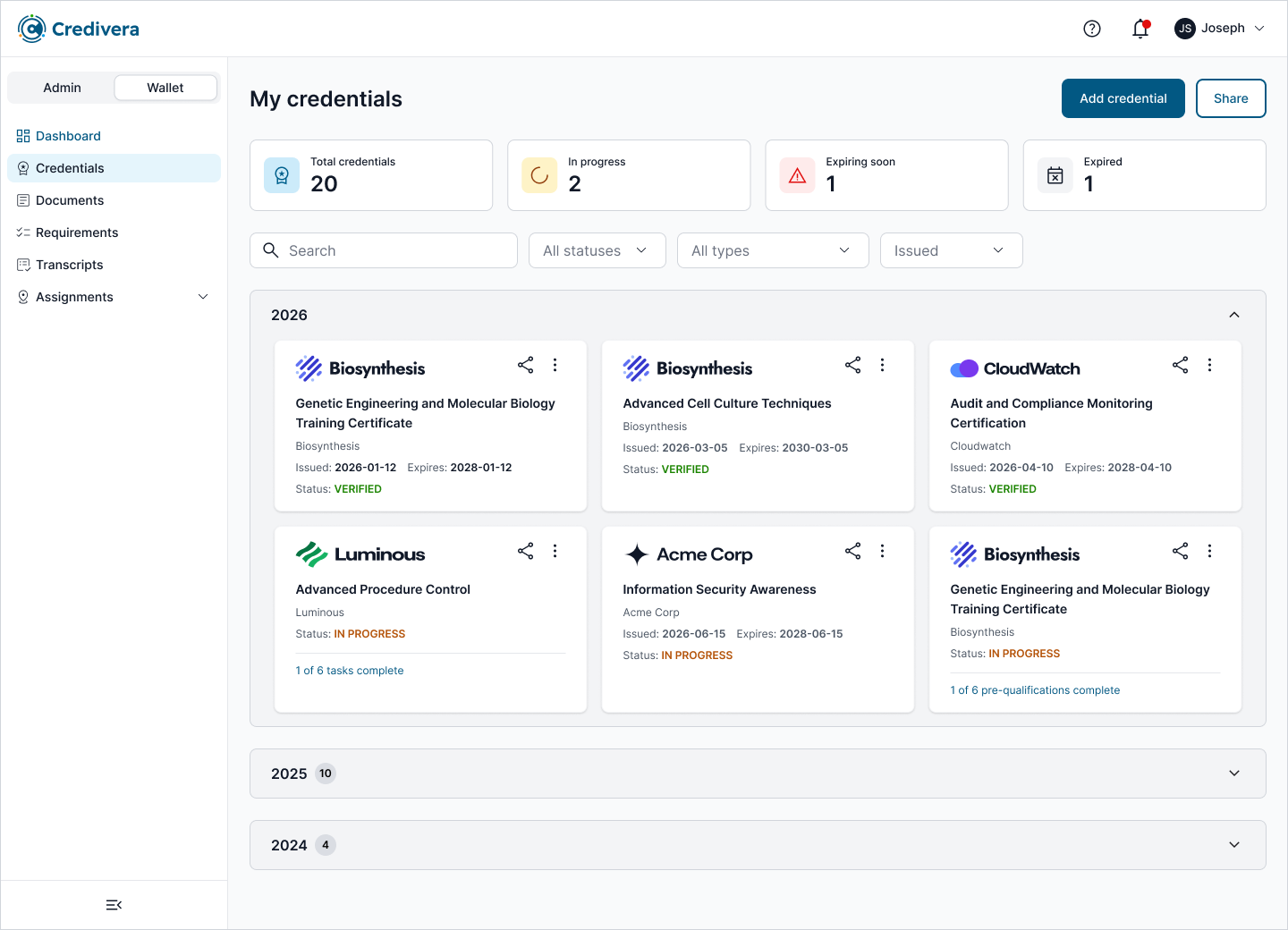
We will be introducing a new navigation to Credivera with an updated side bar for moving between sections and a top bar for help, notifications and your profile.
What is changing?
The single navigation panel is now split into two parts.
Side bar
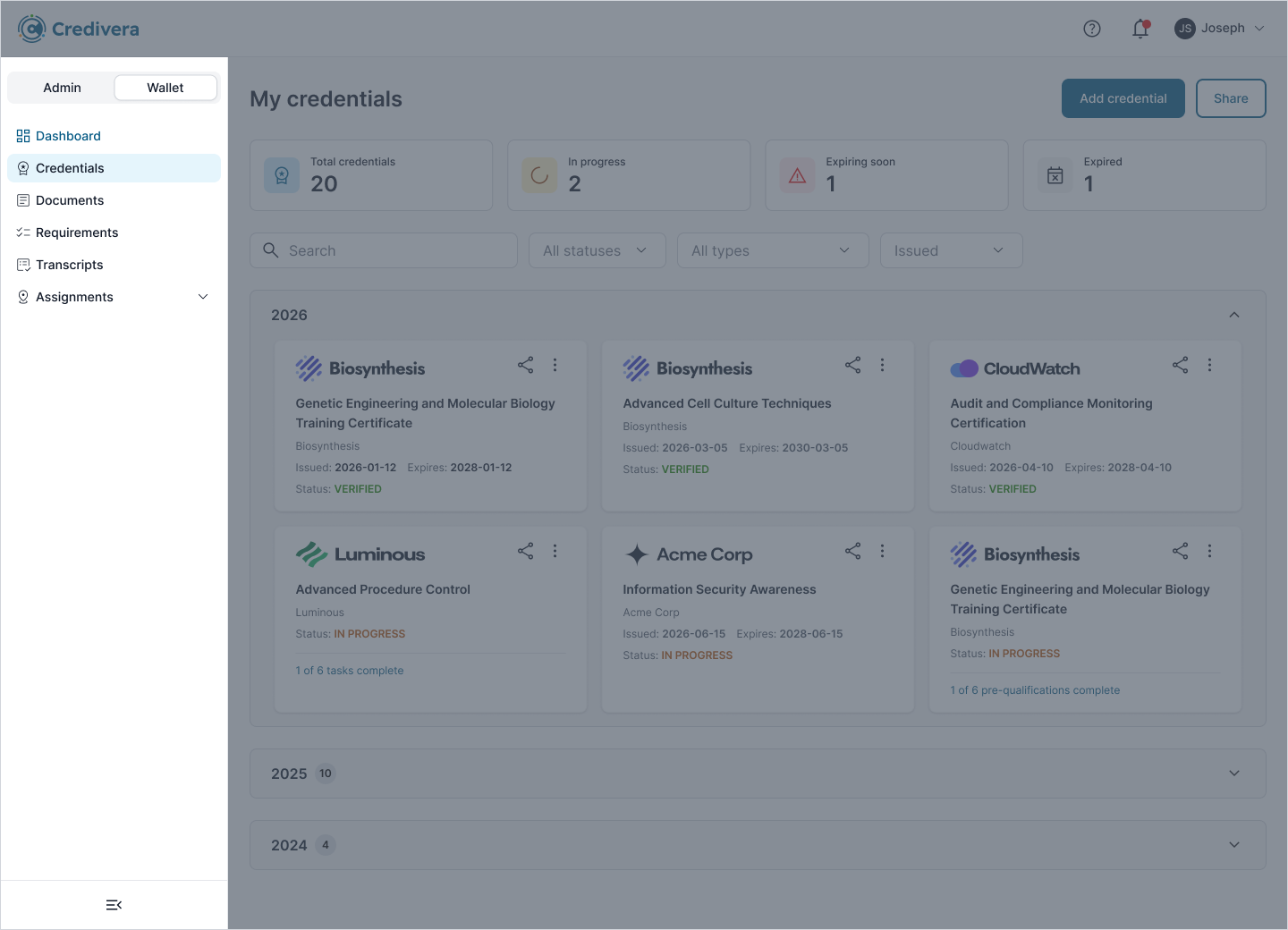
- Collapse to icons: Select the arrow at the bottom of the side bar to shrink it to a slim row of icons and give your page more room. Select it again to expand.
- Expandable groups. Sections with sub-pages, such as Assignments, open and close in place so the list stays short.
- Admin / Wallet switch. If you have admin access, switch between your own wallet and the admin tools. Each view shows only what you need for that role.
Top bar
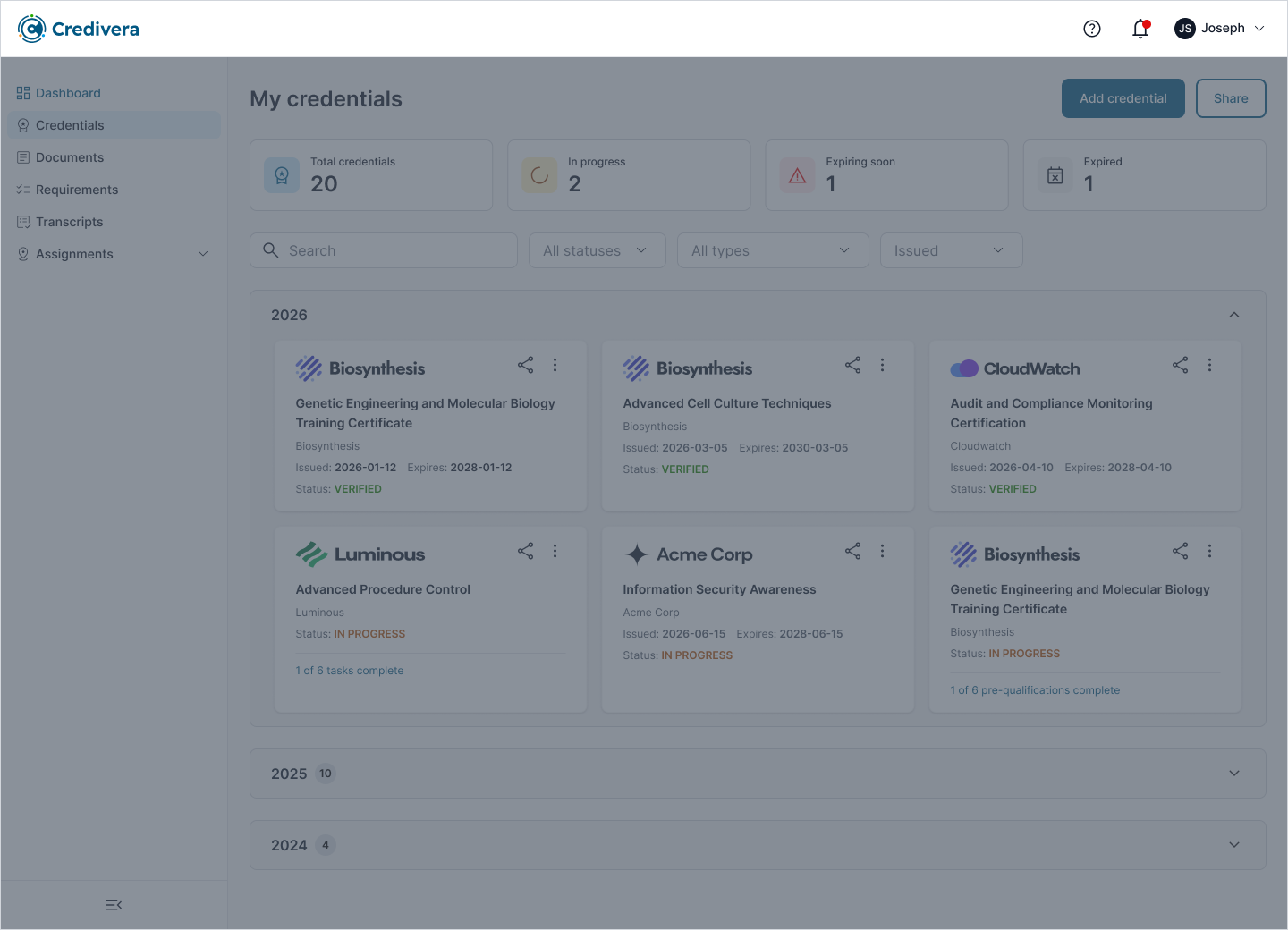
- Help: Open the Help Center from any page.
- Notifications: Access your notifications from anywhere in the app.
- Your account: Open your profile or sign out from the menu under your name.
- Remains in reach: The top bar stays at the top of the screen as you scroll.
On mobile
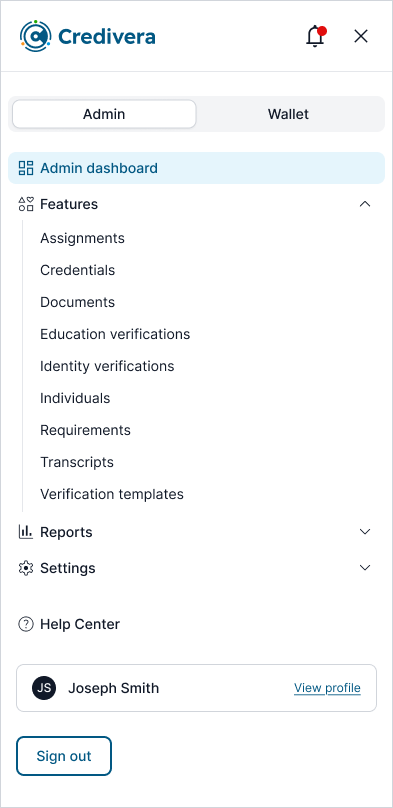
- Tap the menu icon to open the full menu and tap the close icon to return to your page.
- Help, your profile and sign out are at the bottom of the menu.
- The menu closes automatically once you pick a page.
Keyboard and screen readers
- Every item can be reached with the Tab and arrow keys.
- Items are announced with their names, even when the side bar is collapsed to icons.
Frequently asked questions
Has anything been removed? No. Every page you used before is still available; some have moved into the side bar's groups or the top bar.
Why don't I see the User / Admin switch? It only appears if your account has admin access.
Why do some pages still look different? We're updating Credivera one section at a time, starting with the credential wallet. Other sections will follow.